 CodeCogs®
:: Table of Contents
FxEditor
User guideQuickstartDeploymentAPIDesignFxTeX
APIExamplesRight-click menuAccessibilityFxTeX Server
OverviewAPIAccess and keysSelf-hostingPlugins
OverviewCKEditor 5TinyMCE 6 and 7BloggerAngularFroalaTiptapWordPressMoodleGoogle Docs and SlidesCanvas, Blackboard and LTITiddlyWikiWriting your ownLicensing
How licensing worksEquations in Blogger
Blogger has no plugin system, but it does let you add a script to every page of your blog.
Add fxTeX there once, and any LaTeX you write
in a post between $…$ or $$…$$ is shown as a properly
typeset equation — free, with no licence key.
To add it:
- First Log in to Blogger: http://www.blogger.com
- Then choose Layout from drop-down list menu underneath the "More Options" button.:
![dashboard]()
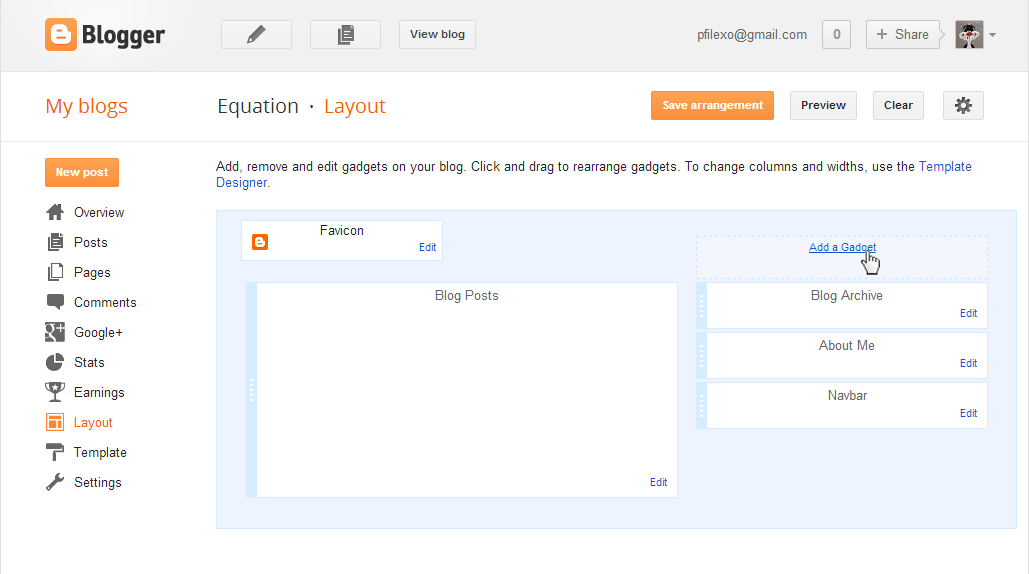
- Within the 'Manage Blogs' section, select 'Design', to get:
![layout]()
- On the right side, click 'Add a Gadget', to get:
![add a gadget]()
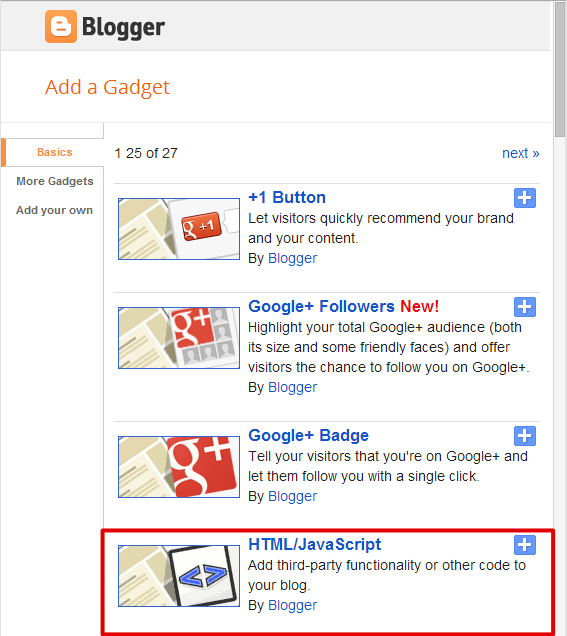
- Scroll down and select 'HTML/Javascript', to get:
![configure]()
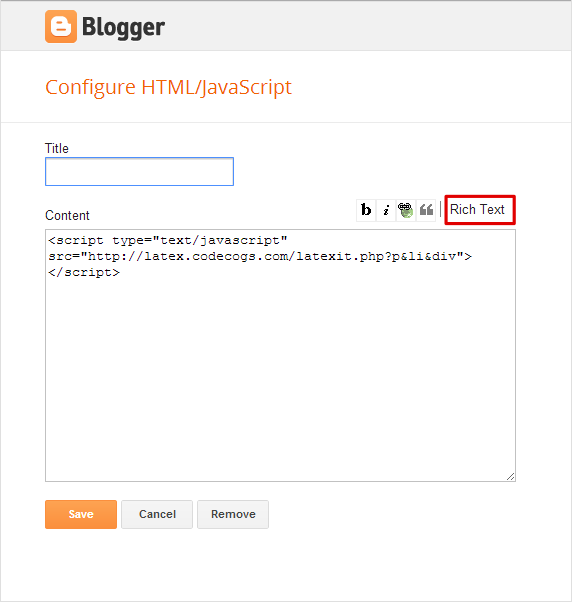
- Before entering the following text, make sure that you are in 'Edit HTML' mode(you are in that mode when that 'Rich Text' title is showed in upper right corner), enter the following text into the 'Content' area:
<script src="https://fxtex.codecogs.com/fxtex.min.js"></script> <script>fxTeX.autoRender();</script> - Now select 'Save' and exit.

Then write equations straight into your posts, for example $e^{i\pi}+1=0$.
Readers can right-click any equation to copy it or open it as a graph — see the
right-click menu. To write equations with a toolbar rather
than by hand, compose them in the online fxEditor and copy the LaTeX across.